Commands & Hub
Detailed reference for the 97+ hierarchical CLI commands, the Super+N declarative Hub menu, window management, and hardware controls.
All operations in NEJEN route through a single unified binary: nejen. Rather than remembering dozens of detached script names, every action follows a logical, space-separated hierarchy.
Actions that do not warrant a permanent keyboard shortcut are accessible via the NEJEN Hub (Super+N).
The Unified CLI Dispatcher
The nejen binary acts as an intelligent command dispatcher. It registers 97+ operations into a unified map and routes invocations by longest match:
nejen theme bg next
- The dispatcher checks for a command registered as
"theme bg next". - If absent, it checks
"theme bg", passing"next"as the first argument. - If absent, it falls back to
"theme", passing["bg", "next"].
This allows related tools to share clear prefixes while permitting subcommands to act as standalone operations (e.g., nejen theme vs. nejen theme set <name>).
Sub-Millisecond Execution
Because the binary compiles directly to native machine code with zero CGO dependencies (CGO_ENABLED=0), subcommands execute in under 1 millisecond. Polled bar indicators and hotkey triggers run without the 50ms–200ms process-spawning penalty of traditional Bash or Python scripts.
The Central Hub (Super+N)
The NEJEN Hub is the central control panel for desktop operations, opened with Super+N (or by clicking [ NEJEN ] at the left end of the top bar). It is a 440px panel in the middle of the screen, over whatever you have open; this is all of it:
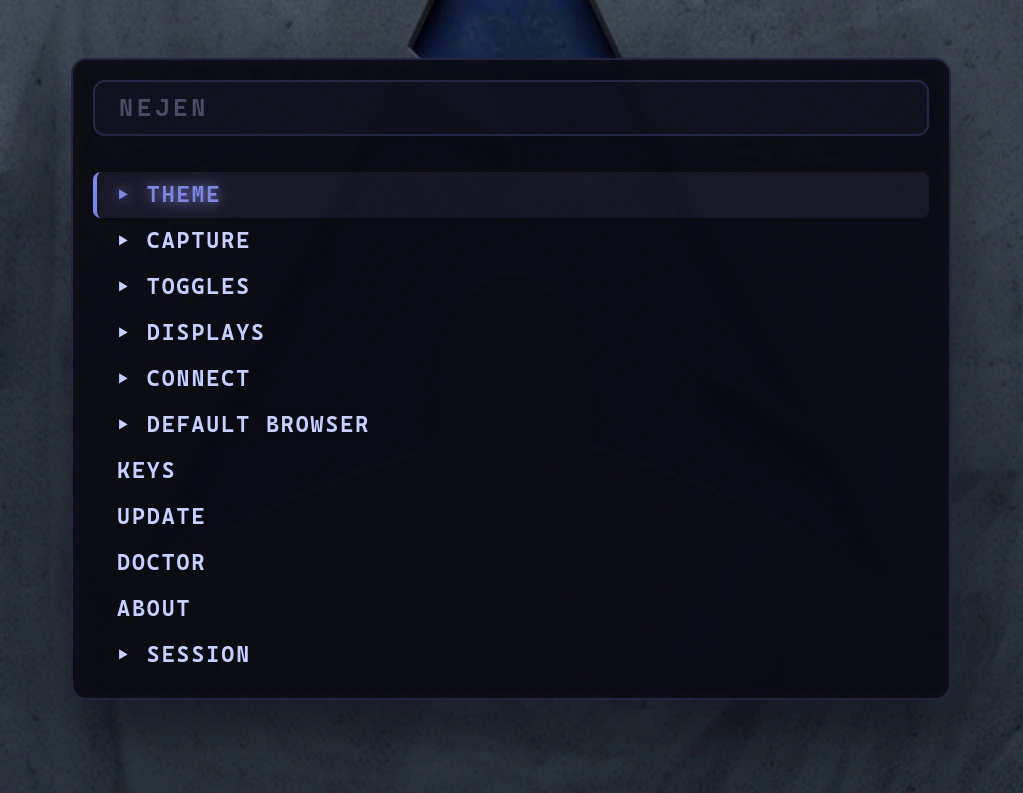
Rows marked ▸ open another level; the rest run something and close the hub. Drilling into Theme › Tweak colors and back out looks like this:
Declarative Architecture
The hub contains no hardcoded menu logic. Its hierarchy and actions are declared entirely in plain TOML in config/hub.toml (and can be extended or overridden in ~/.config/nejen/hub.toml):
[menu.root]
title = "NEJEN"
items = [
  { label = "Theme", menu = "theme" },
  { label = "Capture", menu = "capture" },
  { label = "Toggles", menu = "toggles" },
  { label = "Displays", menu = "displays" },
  { label = "Connect", menu = "connect" },
  { label = "Default browser", each = "nejen browser list --names", run = "nejen browser set '{}'" },
  { label = "Keys", run = "nejen keys" },
  { label = "Update", run = "nejen open tui nejen update" },
  { label = "Doctor", run = "nejen open tui nejen doctor" },
  { label = "About", run = "nejen open about" },
  { label = "Session", menu = "session" },
]
Menu Types & Mechanics
The hub engine supports four item definitions:
- Direct Command:
{ label, run }— executes a command immediately. - Submenu:
{ label, menu }— opens the target[menu.<name>]section. - Confirmation:
{ label, run, confirm = true }— asks for user verification before running potentially destructive actions. - Dynamic Generator:
{ label, each, run }— runs a discovery command (such as listing themes or browsers); each line of output becomes an interactive option, replacing{}inrun.
Non-Destructive Navigation
The hub prompt displays a live breadcrumb tracking your depth: NEJEN › THEME › WALLPAPER. Pressing Escape steps up one level rather than closing the entire launcher, making accidental misclicks painless to undo.
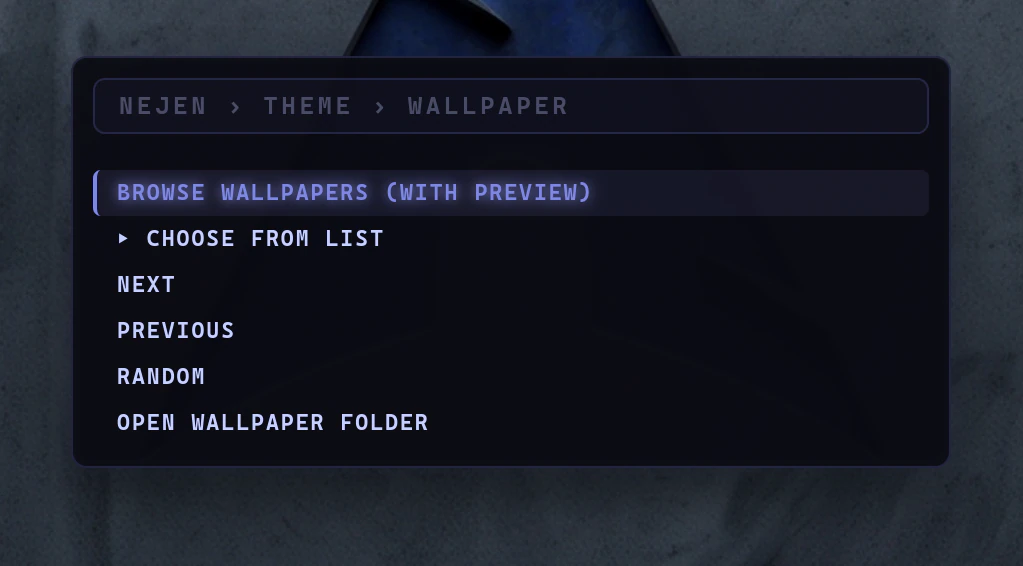
Inside the Menus
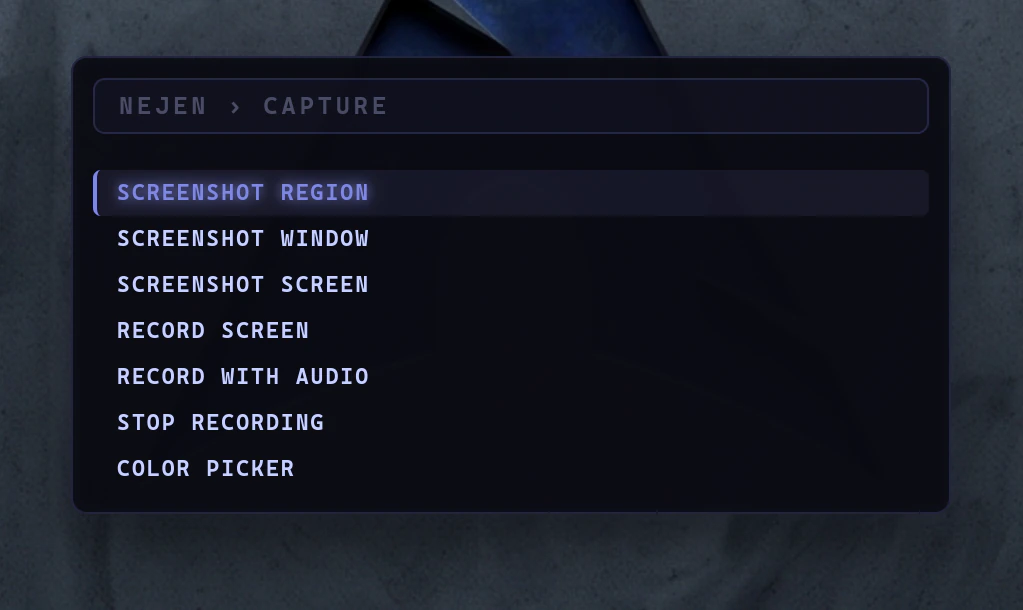
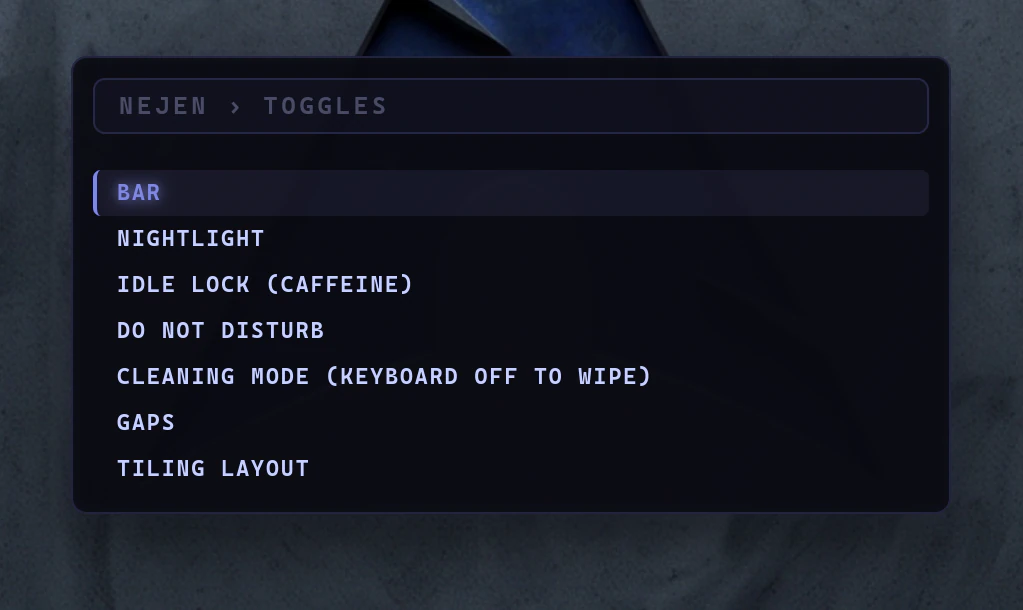
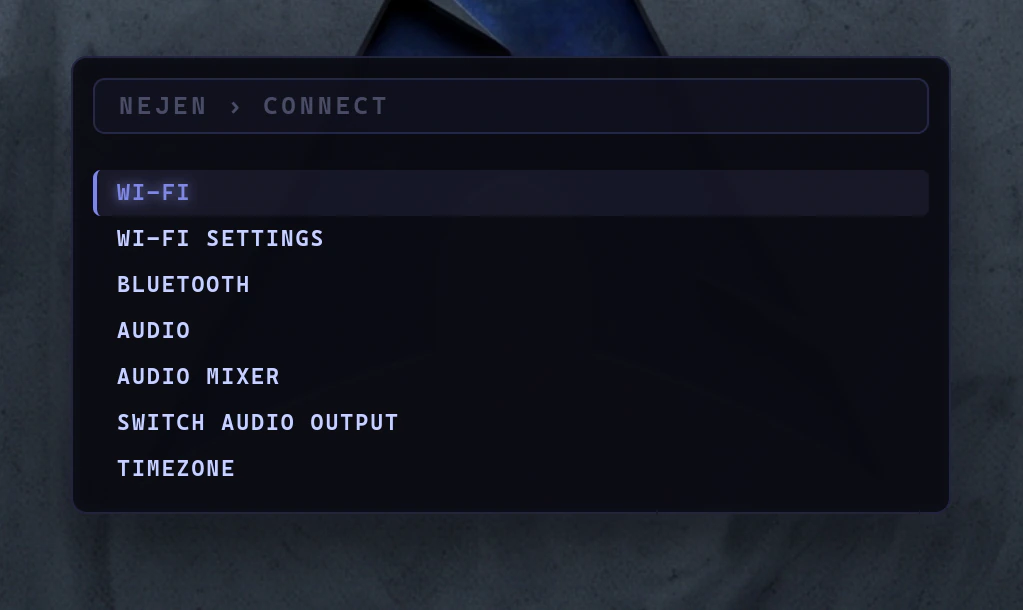
The shipped submenus, as they appear when you open them:
Capture
Toggles
Connect
Session
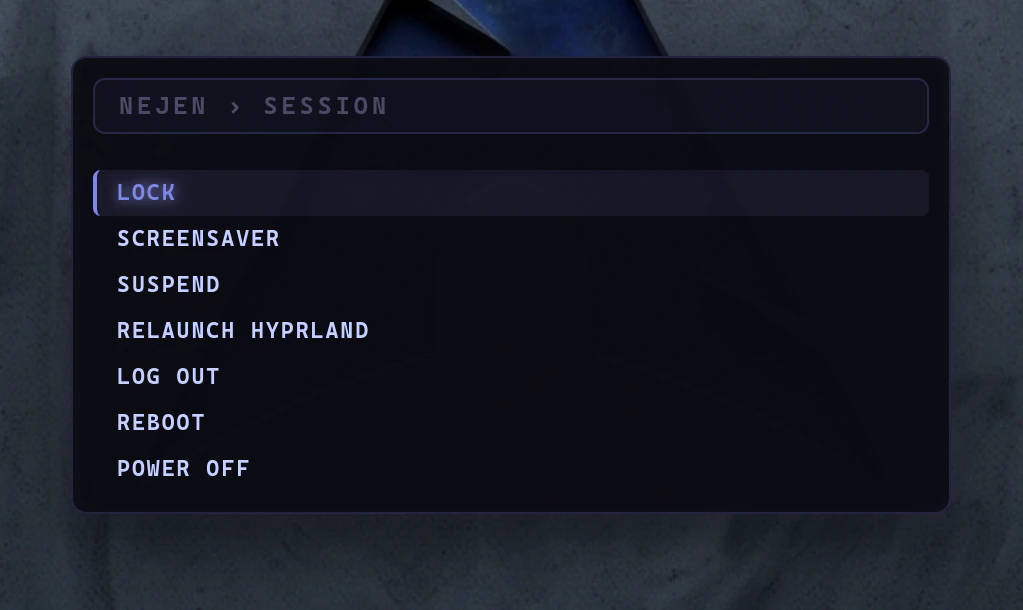
Session also has its own key, Super+Shift+N, and is what the power button and a click on the battery module open. Everything in it from Suspend down is declared with confirm = true, so it asks no / yes before acting.
Core Keybindings
Shortcuts in NEJEN follow a disciplined muscle-memory rule:
Super + <Key>acts on the focused window or launches a core tool.Shiftinverts, intensifies, or moves.Ctrlselects the secondary or deeper variant.Super + Naccesses the Hub for actions without a key.
Application Launchers
| Shortcut | Action | Description |
|---|---|---|
Super+Return | Terminal | Opens Alacritty inherited in the current project directory |
Super+Alt+Return | Terminal (tmux) | Opens Alacritty directly attached to a new or existing tmux session |
Super+Space | App Launcher | Launches the Walker application search |
Super+Period | Emoji & Symbols | Opens Walker in symbol picker mode |
Super+Shift+B | Browser | Opens the configured default browser |
Super+Shift+Alt+B | Browser (Private) | Opens browser in private / incognito mode |
Super+Shift+E | Editor | Launches the default code editor / Neovim |
Super+Shift+T | System Monitor | Opens btop inside a dedicated Alacritty window |
Super+/ | Keymap Reference | Opens the searchable, interactive cheat sheet (nejen keys) |
Smart Clipboard Bridge
In terminal emulators, Ctrl+C sends SIGINT. In graphical apps, Ctrl+C copies. To eliminate friction, NEJEN provides nejen clip:
Super+C: Dynamically detects the active window type. In terminals, it replaysCtrl+Shift+C; in browser and desktop windows, it sendsCtrl+C.Super+V: Pastes using the appropriate application chord.Super+Ctrl+V: Opens the Walker clipboard history manager to paste previous clips.
Window & Layout Management
NEJEN utilizes Hyprland's high-performance compositor, extended with custom layout automations:
Tiling & Navigation
- Focus Direction:
Super + H/J/K/L(standard Vim navigation: left, down, up, right). - Move Window:
Super + Shift + H/J/K/Lswaps or shifts the focused window. - Switch Workspace:
Super + 1throughSuper + 0. - Move to Workspace:
Super + Shift + 1throughSuper + Shift + 0. - Close Window:
Super+Q. - Toggle Fullscreen:
Super+F.
Dynamic Window Modes
1. Layout Switching (Super+Y / nejen win layout)
Toggles the current workspace between Dwindle (spiral binary space partition) and Master (one primary pane with a vertical stack).
2. Square Aspect Mode (Super+O / nejen win square)
Forces the active window to maintain a strict 1:1 aspect ratio centered on the screen. Ideal for code review, square terminals, or social clients on ultra-wide displays.
3. Detach & Pin (Super+U / nejen win detach)
Floats the focused window, pins it across all workspaces, and positions it as a floating picture-in-picture viewport.
4. Gaps Toggle (Super+G / nejen win gaps)
Instantly switches outer and inner window gaps between the default comfortable padding (8px/12px) and 0px borderless edge-to-edge view.
5. Close All (nejen win close-all)
Sends graceful close signals to all windows residing on the active workspace.
Hardware & System Utilities
NEJEN incorporates daily driver utilities directly into the dispatcher:
Screen Capture & Recording
Print(nejen screenshot region): Freeze screen and drag a region to capture. Automatically copies to clipboard and saves to~/Pictures/Screenshots/.Super+Print(nejen screenshot windows): Click any window to capture its exact bounds.Shift+Print(nejen screenshot fullscreen): Captures the complete display output.Super+R(nejen screenrecord): Starts hardware-accelerated video recording viagpu-screen-recorder. Press again (or click the Waybar recording dot) to finish.Color Picker: Available in the Hub (Super+N > Capture > Color picker) viahyprpicker -a.
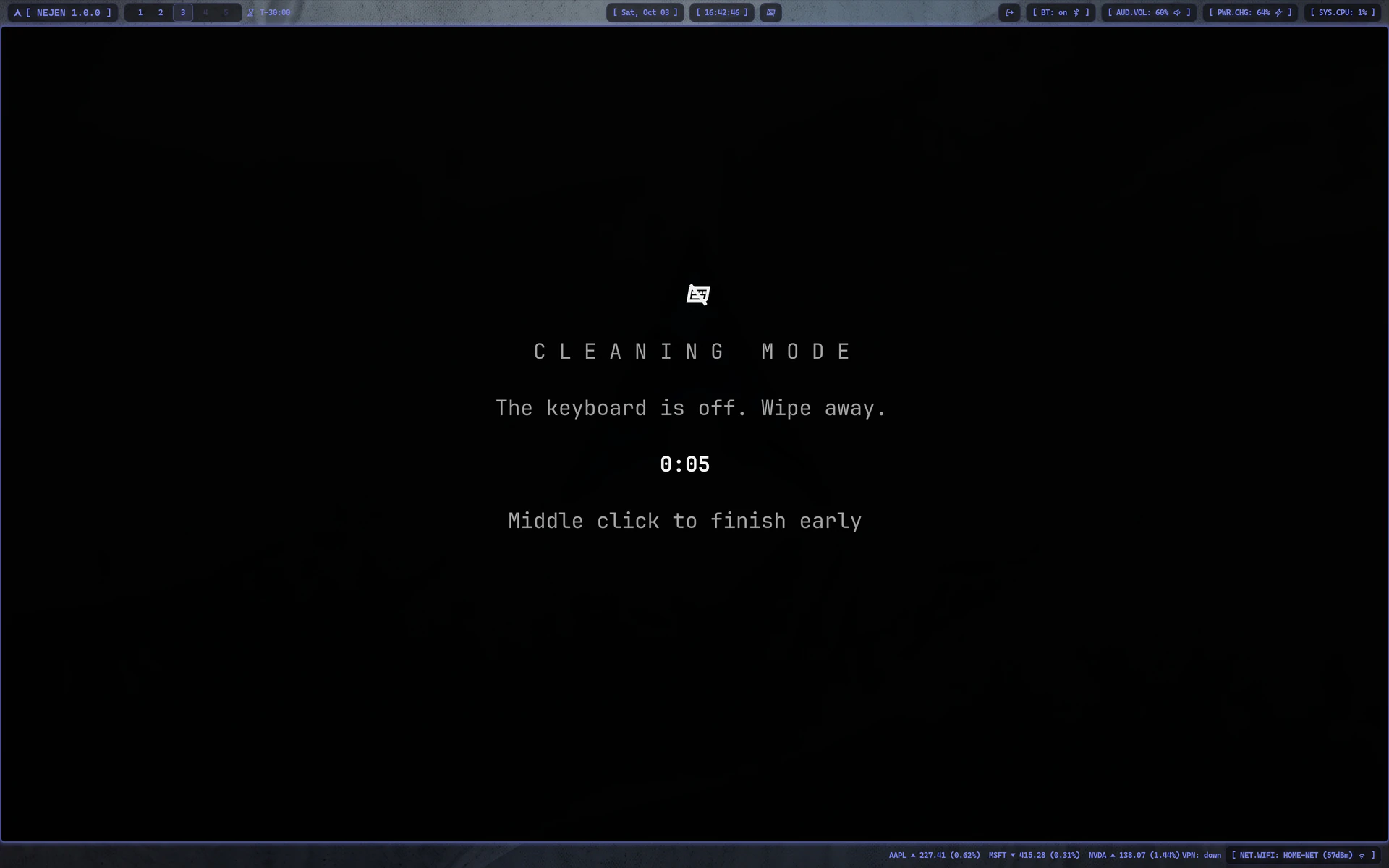
Keyboard Cleaning Mode (Super+Alt+K)
Safely clean laptop and mechanical keyboards without sending garbage input into active windows:
nejen keyboard clean          # Locks input for 30 seconds
nejen keyboard clean --for 2m  # Custom duration (up to 5m)
nejen keyboard clean --stop    # Exit immediately
While active:
- A dedicated Hyprland submap intercepts all keyboard input.
- A fullscreen overlay displays the remaining time and blocks clicks.
- Waybar displays an amber cleaning indicator.
- Middle-clicking anywhere or clicking the bar indicator immediately releases the lock.
- An automated watchdog process guarantees the keyboard is returned if the session dies.
Power & Display Modes
- Caffeine / Sleep Inhibitor (
Super+I/nejen idle toggle): Inverts Hypridle state. Prevents screen blanking and suspend while watching videos or waiting on long compilations. - Do Not Disturb (
Super+Ctrl+D/nejen dnd toggle): Silences all Mako desktop notifications. - Night Light (
Super+W/nejen night toggle): Toggles the warm color temperature filter viahyprsunset. - Display Scaling (
nejen display scale): Cycles connected monitors through common scaling ratios (1.0, 1.25, 1.5, 2.0).
Caffeine, Do Not Disturb, cleaning mode and screen recording each put an indicator beside the clock while they are on, and nothing when they are off. Clicking an indicator turns its mode off again. Here caffeine and Do Not Disturb are both on:

Browser Management
Discover and configure system-wide default web browsers without fiddling with mimeapps lists:
nejen browser list            # Lists installed desktop browsers
nejen browser current         # Displays active default
nejen browser set firefox.desktop # Sets system default
nejen browser select          # Interactive terminal picker
Web apps can also be launched in dedicated, borderless application mode with window re-focusing:
nejen open webapp --focus "Spotify" "https://open.spotify.com"
Notifications & On-Screen Display
Notifications are handled by Mako, configured in config/mako/config:
- They stack at the top center, under the clock, up to five at a time.
- Each one stays for 3 seconds unless the sender asks for longer (a screenshot keeps its thumbnail up for 5, a critical battery warning for 30).
- The panel is the bars' panel: 65% background, a hairline slate border, 4px corners.
NEJEN's own commands report through it, so toggling caffeine, changing the default browser or taking a screenshot each tell you they happened:
Do Not Disturb (Super+Ctrl+D, or Toggles › Do not disturb) switches Mako into its do-not-disturb mode, which hides notifications until you switch it back. The crossed-out bell in the bar is the reminder that it is on.
Volume, mute, brightness and Caps Lock keys go through SwayOSD, which shows a meter in the middle of the screen for a moment:
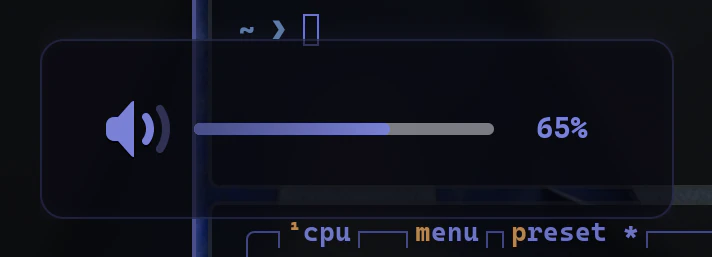
Mako and SwayOSD carry the shipped Nejen colors in their own config, so they keep the slate look when you switch to another theme.
Status Bar Integrations
Waybar modules poll the nejen binary directly for zero-latency telemetry:
- Weather (
nejen weather): Zero-key weather reporting via Open-Meteo. Automatically identifies location via IP or respects manual coordinates configured in~/.config/nejen/weather.toml. - Countdown (
nejen countdown): Tracks days remaining until major events and milestones. Click the Waybar module to manage events (nejen countdown menu) stored in~/.config/nejen/countdown.json. - Indicators: Screen recording, cleaning mode, caffeine, and battery monitoring emit dynamic Pango-formatted markup powered by
Negen Icons.