USB Sticks, Disks, and the Mysterious 4GB Wall
Why a 64GB USB stick refuses a 5GB file, what a file system actually is, and how FAT32, exFAT and NTFS really differ inside.
You buy a 64GB USB (Universal Serial Bus) stick. You try to copy a 5GB video onto it. The computer refuses, and says the file is too large for the destination. The stick has 59 gigabytes free, and the copy fails anyway.
The obvious guesses are that the stick is broken, or that the computer is wrong about the free space. It's neither. The cause is a 32-bit number in a format designed in 1996.
In my Networking class, the professor used this example, for a good reason. Once you understand why the copy fails, you understand what a file system really is. So this post builds up to it step by step.
A USB stick is three things pretending to be one
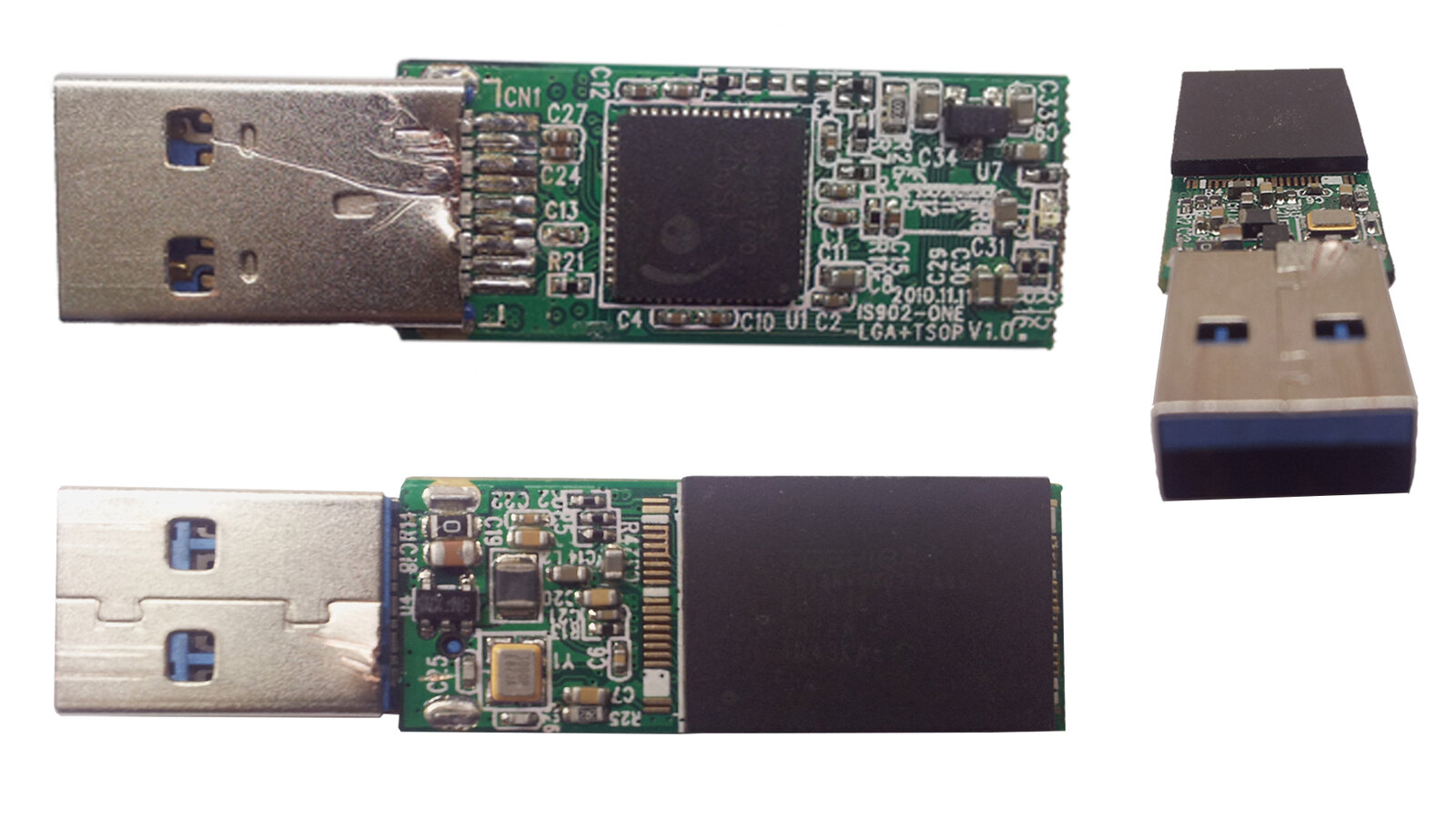
A USB stick looks like one object. Inside, it has three separate parts.
Flash memory is the chips that actually store your bits. Flash works in an unusual way. You can't overwrite a small piece of it directly. You have to erase a whole block and write it again, and each part of the chip can only be erased a limited number of times before it wears out.
A controller is a tiny computer that hides all of that. It moves data around so that no part of the chip wears out early, which is called wear levelling, and it shows the flash to your computer as plain, simple storage.
The USB connection only carries data. USB itself knows nothing about files. It just moves packets.
The controller shows your computer the basic form that all storage takes.
A block device is a giant array of numbered sectors, each typically 512 bytes. Read sector N, write sector N. That's the entire interface.
A sector is one small numbered box of storage. Your SSD (Solid-State Drive), your hard drive, an SD card and that USB stick all look the same to the operating system: a long row of numbered boxes.
When you plug the stick in, it speaks the USB Mass Storage protocol. That protocol takes the standard commands for disks, called SCSI commands, and wraps them in USB packets. Linux then gives the stick a name.
$ lsblk
NAME   SIZE TYPE MOUNTPOINT
sda  476.9G disk               ← internal SSD
sdb   57.6G disk               ← the USB stick
└─sdb1 57.6G part /run/media/you/STICK
The same driver and the same interface handle both. To Linux, the stick is just a very small, very slow disk.
The problem a filesystem solves
Here is the important point. A row of numbered sectors knows nothing about files. It has no names, no folders, no sizes, and no record of which sectors are free.
If you want a video file to exist, something has to decide three things. Which sectors hold its bytes? Where are its name and size written down? Which sectors are still free for the next file?
That system of record keeping is a file system. It isn't hardware. It's a data structure written onto the sectors, plus the code that reads and writes it. When you format a stick as FAT32 (32-bit File Allocation Table), exFAT, NTFS (New Technology File System) or ext4, you are choosing which data structure gets written onto those sectors.
And every data structure has limits. That brings us to FAT.
FAT: a linked list on a disk
FAT, short for File Allocation Table, is very old. It goes back to 1977 and Microsoft's Disk BASIC, and it was used on floppy disks, in DOS and in Windows 95. It's still used everywhere today, because it's simple.
FAT splits the disk into clusters, which are groups of sectors of a fixed size. It then keeps one big table with one entry for each cluster. Each entry answers one question: if a file uses this cluster, which cluster comes next?
Each file has a directory entry, which records its name, its size and its first cluster. From the first cluster, you follow the chain through the table.
That's the whole design. It's a linked list, a chain where each item says where the next one is, and all the "next" links are kept in one table.
The 12, 16 and 32 in FAT12, FAT16 and FAT32 are the size in bits of each table entry. Bigger entries can point to more clusters, which means bigger disks. FAT32 came with an update of Windows 95 in 1996, when a 2GB hard drive was considered huge.
The 4GB wall, exactly
Now back to the example from my Networking class. Look at the directory entry, the record FAT32 keeps on the disk for every file. It's exactly 32 bytes.
The file's size is stored in 4 of those bytes, as an unsigned 32-bit whole number. The largest number 32 bits can hold is 4,294,967,295. As a file size in bytes, that's 4 GiB minus one byte.
That's the whole explanation. There's no room in a FAT32 directory entry to write a bigger number. It doesn't matter how much free space the stick has. The file system can't record a file larger than that, so the operating system refuses before it writes a single byte.
Two details are worth noting.
It's a limit for each file, not for the disk. A FAT32 disk can be up to 2TB and hold thousands of files, as long as each file stays under the limit.
Nobody expected it to matter. In 1996, a 4GB file seemed absurd, and most hard drives were smaller than that. Many limits in computing went the same way, including 32-bit IP (Internet Protocol) addresses and 32-bit Unix time. They were more than enough when they were designed, and a real limit twenty years later, once a single movie or game update was bigger than 4GB.
The fix is to use a file system with a bigger size field. That's exactly why the others exist.
NTFS: the grown up filesystem
NTFS came with Windows NT in 1993. It was designed for servers, and it's built very differently from FAT.
Instead of one table of "next cluster" links, NTFS is built around the Master File Table. Every file has a record there. The record describes the file's clusters as extents, which are ranges such as "start at cluster 9 and continue for 2 clusters". That's much shorter than a chain you follow one cluster at a time.
On top of that, NTFS adds the features FAT never had.
64-bit file sizes. The real limits for files and disks are in the hundreds of terabytes. The 4GB wall doesn't exist.
Journaling. Before NTFS changes its records, it first writes what it's about to do in a log, called a journal. If the power goes off in the middle of a change, NTFS reads the log the next time it starts, and finishes or cancels the change. It never stays half done. FAT has nothing like this. That's why pulling out a FAT stick at the wrong moment can leave its records in a mess, and it's what "safely remove" warnings and disk-checking tools are really about.
Permissions. Every file has a list that says who may read it, change it and run it. FAT has no idea of an owner at all. That's why every file on a USB stick seems to belong to whoever plugged it in.
NTFS also adds compression, encryption, and other features.
So why isn't everything NTFS? Because of compatibility. NTFS belongs to Microsoft, and it's complicated. Cameras, TVs, car stereos and printers mostly can't write to it, and macOS can read it but can't write to it without extra software. FAT32 is so simple that almost every device supports it.
exFAT: the peace treaty
For removable storage there is an option in the middle. exFAT, from 2006, keeps the simplicity of FAT, with no journal and no permissions, but makes the size fields 64 bits wide.
The 4GB limit is gone. Microsoft made exFAT part of the SD card standard, and later it was added to the Linux kernel. Today it's the default on every SDXC card and on most large USB sticks.
Here is the whole comparison in one table.
| FAT32 | exFAT | NTFS | |
|---|---|---|---|
| max file size | 4 GiB minus 1 | effectively unlimited | effectively unlimited |
| journaling | no | no | yes |
| permissions | no | no | yes |
| works everywhere | yes | almost | Windows, mostly |
| best for | small sticks, EFI boot partitions | big sticks, SD cards | Windows internal drives |
Linux computers use their own file systems, such as ext4, btrfs and xfs. These also have journals and permissions, and the same reasoning applies to them.
Try it yourself
On Linux, you can see all of this happen with a spare stick. These commands erase the stick, so check its device name with lsblk first.
$ sudo mkfs.vfat -F 32 /dev/sdb1        # format as FAT32
$ mount | grep sdb1
/dev/sdb1 on /run/media/you/STICK type vfat (...)

$ fallocate -l 5G bigfile
$ cp bigfile /run/media/you/STICK/
cp: error writing '.../bigfile': File too large    ← the 32-bit wall

$ sudo mkfs.exfat /dev/sdb1             # reformat as exFAT
$ cp bigfile /run/media/you/STICK/      # works fine
The same stick, the same free space and the same file. The only thing that changed is the data structure written onto the sectors.
Wrapping Up
A USB stick, an SSD and a hard drive all look the same to your computer: a numbered row of sectors. USB is only the way the data travels.
A file system is a data structure on top of those sectors. It creates the idea of files, names, folders and free space.
FAT32 stores each file's size in a 32-bit field, so no file can be bigger than 4 GiB minus one byte. That limit is built into a 32-byte record designed in the 1990s.
NTFS replaces FAT's chains with the Master File Table and extents. It adds a journal, permissions and 64-bit sizes, but fewer devices can use it.
exFAT is FAT with 64-bit sizes, and it's the practical choice for anything you plug in and remove.
The next time a copy fails while there are gigabytes of free space, you will know the stick isn't broken. The cause is a field that's four bytes wide.
Check yourself
3 questions · nothing is savedWho wrote this
Author profile and background

Takumi Yamada
· Backend EngineerBackend engineer building services, databases, Linux tooling, and NEGEN SYSTEMS. Writing about low-level mechanics, distributed systems, and real-world security.
- Written
- Jul 19, 2026
- Length
- 1,733 words · 8 min
- Built
- …
- Served by
- …
- Delivered
- …
- Over the wire
- …
- Go's share
- …
How Linux Boots: From Power Button to Login
Firmware, bootloader, kernel, initramfs, PID 1: the chain of programs that runs between pressing the power button and seeing a login screen.