How Your Home Network Actually Works
DHCP, ARP, NAT, and the four devices inside your "router": the local half of networking, which happens before a packet ever reaches the internet.
Most explanations of networking start with the internet. I think that skips the more useful half.
Before your packet reaches your ISP (Internet Service Provider), several things have already happened inside your home. Your laptop asked for an address. It sent a message to every device in the house to find the router's hardware address. And the router changed the packet's sender address on the way out.
This is the local half of networking, the part that happens entirely inside your home. It's also where most "the Wi-Fi is broken" problems come from.
Your router is four devices in a trenchcoat
The box your ISP gave you does at least four jobs. Each job used to need its own separate device.
Thinking of these as four separate jobs helps right away. Weak Wi-Fi in the bedroom is an access point problem. One device that can't reach another device is a problem with the switch or the LAN (Local Area Network). Nothing at all reaching the internet is a problem with the router or the modem. Different jobs have different fixes.
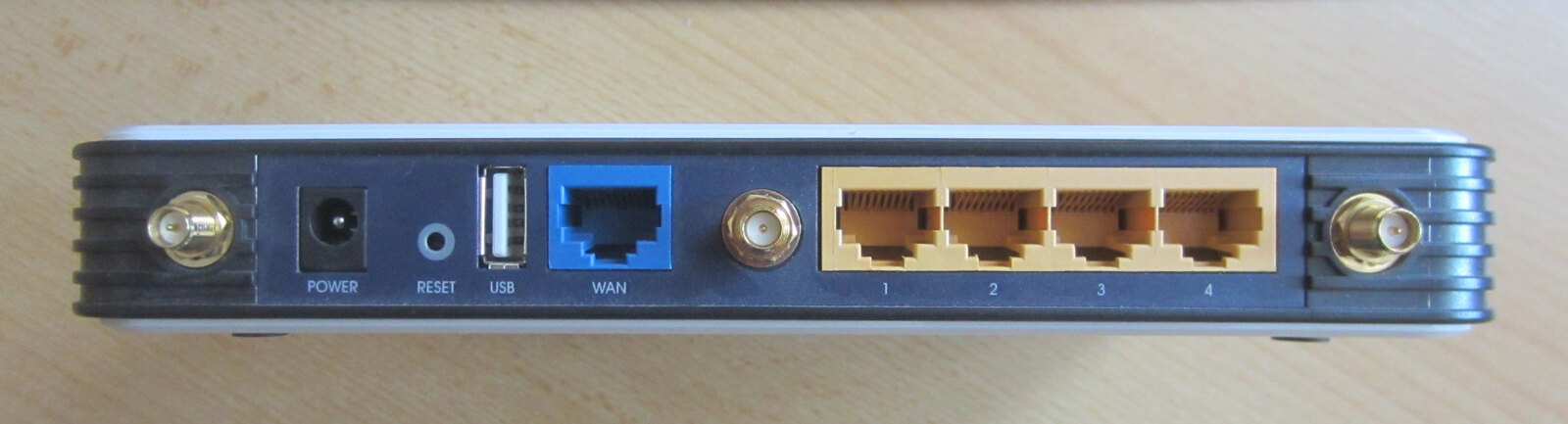
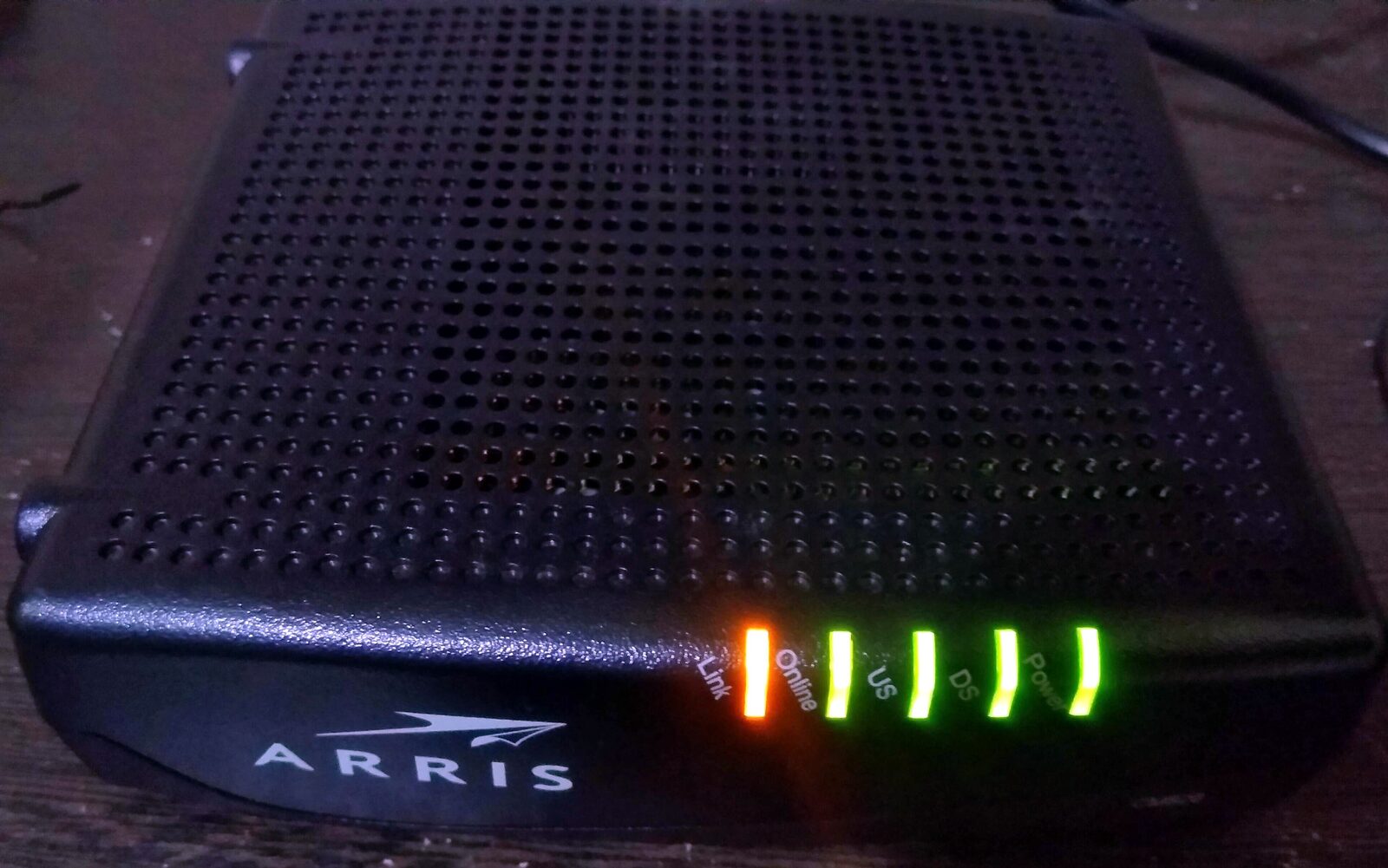
Two kinds of addresses
Every device on your network has two addresses, and it's important to keep them apart.
A MAC address belongs to the device's network adapter. It's set when the adapter is made, and it only matters on the local network. In daily life, it's like your name: it goes with you wherever you go. (Many phones and laptops now make up a different MAC address for each Wi-Fi network, for privacy, but the idea is the same.)
An IP (Internet Protocol) address is given to the device by whichever network it joins, so it's different at home and at a café. It's like a seat number, which only means something in one room.
On your local network, data is delivered by MAC address. Across the internet, packets are routed by IP address. A big part of the local network's job is translating between the two.
DHCP: how your laptop gets an address
When your laptop joins the Wi-Fi, it has no IP address. It doesn't know where the router is, or which DNS (Domain Name System) server to use for looking up names. So it sends a broadcast, a message to every device on the local network, and the router's DHCP (Dynamic Host Configuration Protocol) server answers.
It takes four packets, known together as DORA.
laptop  ── DISCOVER ──►  everyone   "anyone out there hand out addresses?"
router  ── OFFER ─────►  laptop     "how about 192.168.1.42?"
laptop  ── REQUEST ───►  router     "yes, I'll take 192.168.1.42"
router  ── ACK ───────►  laptop     "it's yours for 24h. gateway is .1,
                                     DNS is .1, netmask 255.255.255.0"
The last message, the acknowledgment, holds everything the laptop needs. It has the laptop's address, the gateway, which is the router's own address and the way out of the local network, and a DNS server to use.
The address is only lent for a limited time, called a lease, and the laptop has to renew it. When a lease goes wrong, "turn it off and on again" really is the right advice, because the laptop asks for a fresh lease.
ARP: shouting into the room
Now the laptop wants to send a packet to the internet, which means giving it to the gateway at 192.168.1.1. But the local network delivers by MAC address, and the laptop doesn't know the router's MAC address yet.
The solution is ARP (Address Resolution Protocol), and it's very basic. The laptop asks every device on the local network at once.
laptop  ── broadcast ──►  "WHO HAS 192.168.1.1? tell 192.168.1.42"
router  ── reply ──────►  "192.168.1.1 is at a4:2b:...:9f"
The answer is saved in an ARP cache, so the laptop doesn't have to ask again for every packet. You can see yours with the command ip neigh.
This works because every device on a local network trusts every other device, and that trust is also the weakness. A malicious device can simply answer with a lie, pretend to be the router, and start receiving everyone's traffic. This is called ARP spoofing. It's the classic reason why networks you don't trust, and smart home gadgets on the same network as your laptop, are dangerous.
NAT: one public IP, twenty devices
Your ISP gives you one public IP address, and your home may have twenty devices. NAT (Network Address Translation) makes that work.
Inside the house, every device uses a private address. Addresses starting with 192.168, with 10, or with 172.16 up to 172.31 are reserved for this. They are never used on the public internet.
When a packet from your laptop goes out, the router replaces the laptop's private address with the house's public address, and writes the swap down in a table.
This has two big results.
Every device in your house shows the same public IP address to the outside world.
Connections that start from outside stop at the router. When a reply comes back, the router finds the matching entry in its table and passes the reply to the right device. A connection that nobody inside asked for has no entry, so the router has nowhere to send it and drops it. This works like a firewall, even though NAT wasn't designed as one, and it's a real security benefit. It's also why running a game server at home needs port forwarding: you add the missing table entry by hand.
Wi-Fi: the shared air part
Wi-Fi is the local network carried over radio, and two physical facts about it are worth knowing.
A channel is shared, and devices take turns. Only one device can send on a Wi-Fi channel at a time. So every nearby network on channel 6, including your neighbour's, takes turns with you. More devices means more waiting, even when your signal is strong.
Each band trades distance for speed. The 2.4 GHz band passes through walls well, but it's slow and crowded. The 5 GHz and 6 GHz bands are fast and less crowded, but they get weak more quickly with distance and walls.
One more thing is worth being clear about. WPA2 and WPA3, the Wi-Fi encryption standards, only protect the radio signal. Everyone who knows the password is inside the same local network, where devices trust each other's ARP answers. That's exactly what guest networks are for: they put visitors and gadgets on a separate local network.
Tracing a packet through the whole house
Here are all the steps together, for loading one web page on your laptop.
- DHCP, already done. The laptop has a lease for
192.168.1.42. - DNS. The laptop asks the router, or a public DNS server, to turn the name into an IP address.
- Routing decision. The destination isn't on the local network, so the packet goes to the gateway.
- ARP. The laptop finds the gateway's MAC address, which is cached after the first time.
- Radio. The frame travels over Wi-Fi to the access point, and through the built-in switch to the router.
- NAT. The router replaces the sender address with the public IP address and records the swap.
- Modem. The packet goes out on the ISP's line. The rest of the trip is in How the Internet Delivers a Packet.
The Bottom Line
Most home network problems come from one of these mechanisms.
"Connected, but no internet" is usually DHCP or DNS. Two devices that can't see each other usually means they are on separate networks, or ARP is failing. Not being able to host anything from home is NAT. A connection that gets slow in the evening is the shared radio channel.
The security part of this post also explains why the usual advice for smart home devices works. Guest networks and VLANs (virtual LANs) protect you because ARP trust stops at the edge of each network.
Learn the four devices inside the router and the three address mechanisms, DHCP, ARP and NAT, and you can work out where a home network problem comes from.
Check yourself
3 questions · nothing is savedReferences & Primary Sources
Official specifications, standards, and documentation cited in this post.
- [1]
Defines the private IPv4 ranges (10.0.0.0/8, 172.16.0.0/12, 192.168.0.0/16) used across local area networks.
RFCrfc-editor.org - [2]
The official protocol specification for automatic IP address leasing and network configuration (DHCP).
RFCrfc-editor.org - [3]
Specifies Network Address Port Translation (NAPT) enabling multiple internal devices to share a single public IP.
RFCrfc-editor.org - [4]
Standard for converting IPv4 network addresses to 48-bit IEEE 802 MAC addresses over local Ethernet.
RFCrfc-editor.org
Who wrote this
Author profile and background

Takumi Yamada
· Backend EngineerBackend engineer building services, databases, Linux tooling, and NEGEN SYSTEMS. Writing about low-level mechanics, distributed systems, and real-world security.
- Written
- Nov 25, 2025
- Length
- 1,344 words · 6 min
- Built
- …
- Served by
- …
- Delivered
- …
- Over the wire
- …
- Go's share
- …
How the Internet Delivers a Packet
You type a web address and a page appears. Here's the full chain of DNS, TCP, TLS and HTTP that makes it happen.